| Wolverine Data Film2Digital MovieMaker-PRO Specifications |
| Product Overview |
| Product Name |
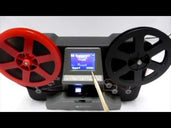
Wolverine Data Film2Digital MovieMaker-PRO 8mm and Super 8 Converter |
| Model |
MovieMaker-PRO / MM100-PRO |
| Product Type |
Standalone 8mm and Super 8 film-to-digital converter |
| Primary Function |
Converts 8mm and Super 8 movie film reels into digital MP4 video files |
| Standalone Operation |
Yes, no computer is required while scanning |
| Software Required to Scan |
No |
| Film Compatibility |
| Supported Film Types |
Regular 8mm / Standard 8 and Super 8 roll film |
| Film Type Selection |
Physical film selection lever: left for 8mm, right for Super 8 |
| 8mm Sprocket Type |
Rectangular sprocket hole |
| Super 8 Sprocket Type |
Square sprocket hole |
| Maximum Reel Size |
Up to 9" / 22.9 cm reels |
| 3" Reel Support |
Yes |
| 5" Reel Support |
Yes |
| 7" Reel Support |
Yes |
| 9" Reel Support |
Yes |
| 16mm Film Support |
No |
| Photo / Slide / Still Negative Scanning |
No |
| Positive Film Support |
Yes |
| Negative Film Support |
Yes |
| Scanning & Image Sensor |
| Scan Method |
Frame-by-frame video scanning |
| Image Sensor |
3.53 megapixel 1/3" CMOS sensor |
| Sensor Pixel Resolution |
2304 × 1536 pixels |
| Colour Depth |
24-bit colour |
| White Balance |
Automatic |
| Real-Time Scan Speed |
No, scanning is slower than real-time because each frame is captured individually |
| Film Counter |
Yes, on-screen counter increases after each recording stop |
| Video Output |
| Output Resolution |
1080p Full HD |
| Output Frame Rate |
20 frames per second |
| Video File Format |
MP4 / MPEG-4 |
| Audio Recording |
No, video only |
| Magnetic Sound Film Support |
No |
| Optical Sound Film Support |
No |
| Sound Synchronisation |
Not applicable; no sound is captured |
| Menu Pages & On-Device Software Options |
| Menu Page 1 |
Record, Playback, Rewind, USB |
| Menu Page 2 |
Exposure, Sharpness |
| Menu Page 3 |
Frame ADJ, Language, Format |
| Menu Page 4 |
Default Setting, Film Type, Version |
| Navigation Buttons |
Power, Up/Down arrows, Enter/Start/Stop, Menu |
| Menu Button Function |
Go back to menu selection; press twice to go to menu mode or record mode |
| Enter / Start / Stop Button Function |
Start or stop the highlighted item or selected function |
| Exposure, Sharpness & Image Adjustment Options |
| Exposure Control |
Automatic or manual brightness adjustment |
| Exposure Range |
-2.0 to +2.0 EV |
| Exposure Default |
0.0 |
| Exposure Example Options |
-0.5, 0, +0.5 shown in menu examples; full adjustment range is -2.0 to +2.0 |
| Negative Exposure Effect |
Darker image |
| Positive Exposure Effect |
Brighter image |
| Sharpness Options |
Low, Medium, High |
| Sharpness Default |
Medium |
| Frame Adjustment |
Yes, frame centre and zoom can be adjusted before recording |
| Frame ADJ X Option |
Shifts frame centre left or right |
| Frame ADJ Y Option |
Shifts frame centre up or down |
| Frame ADJ W Option |
Zooms in or zooms out |
| Adjustment Timing |
Exposure, sharpness, frame adjustment and other non-default settings should be changed before starting recording |
| Record Mode |
| Record Function |
Starts frame-by-frame capture to MP4 |
| Start Recording |
Press Enter / Start / Stop after selecting Record |
| Stop Recording |
Press Enter / Start / Stop during recording |
| Recording Indicator |
Red dot blinks while recording is in process |
| File Counter Behaviour |
Counter increases by one after each recording stop |
| Playback Mode |
| On-Device Playback |
Yes |
| Playback File Selection |
Use Up/Down arrows to select a recorded MP4 file |
| Pause Playback |
Yes, press Enter/Stop to pause playback |
| Delete File on Device |
Yes, press Menu once in Playback to enter Edit mode, then choose Delete |
| Playback Return Option |
Return option goes back to Playback |
| No File Message |
If the card has no compatible MP4 movie files in the correct folder, the viewer displays “No File” |
| Mac Hidden File Note |
Mac computers may create hidden files on the SD card; these hidden files are not playable by the unit |
| USB Mode & File Transfer |
| USB Interface |
USB 2.0 |
| USB Mode |
External drive / removable storage mode for accessing files on the SD/SDHC card |
| Computer Drive Name |
May appear as “NO NAME” or similar depending on the computer |
| File Folder Location |
FilmScanner / MOVIE |
| USB Driver Required |
No dedicated driver required for normal file transfer |
| USB Live View to Computer |
No, USB is for file transfer from the SD/SDHC card, not webcam-style live capture |
| USB Live Recording to Computer |
No, recording is saved to the SD/SDHC card |
| USB-C |
No |
| TV Output & Live Viewing |
| Built-in Display |
2.4" colour TFT LCD |
| TV Output |
Yes, composite TV-out using included TV-out cable |
| TV Output Standard |
NTSC / PAL |
| TV Connection Type |
Yellow composite video input |
| HDMI Output |
No |
| Live View on TV |
Yes, the TV can show the MovieMaker-PRO viewer screen when connected via TV-out |
| Built-in Screen During TV-Out |
The unit’s viewer screen turns dark when TV-out is connected |
| Use as a Projector |
No, it is a scanner/digitizer rather than a traditional projector |
| Storage & Memory Cards |
| Memory Card Type |
SD / SDHC memory card |
| Maximum Card Capacity |
32 GB maximum |
| SDXC Card Support |
No official support; 64 GB or larger cards may cause a “Card error” message |
| Internal Memory |
None |
| Memory Card Included |
No, a compatible SD/SDHC card is required separately |
| Card Lock Position |
SD/SDHC card must be unlocked before use |
| Card Removal Behaviour |
Push card inward to release; pulling directly may damage the card reader |
| Automatic Power-Off During Card Eject |
The unit powers off automatically if the SD/SDHC card is mounted or dismounted |
| Format Function |
Yes, menu option can erase all files on the inserted SD/SDHC card |
| Rewind Function |
| Rewind Support |
Yes |
| Rewind Setup |
Film is removed from the light table and reels are swapped before rewinding |
| Take-Up Reel Position for Rewind |
Empty take-up reel goes on the right side |
| Rewind Start / Stop |
Press Enter to start or stop rewinding |
| Language, Reset, Version & Format Options |
| Languages |
English and Japanese |
| Default Setting Option |
Yes, resets all values to manufacturing defaults, including 0.0 exposure and medium sharpness |
| Format Option |
Yes / No selection to erase all files on the inserted SD/SDHC card |
| Film Type Menu Option |
Positive or Negative film |
| Version Display |
Yes, version menu option is included |
| Computer Operating System Compatibility |
| Windows XP |
Yes |
| Windows Vista |
Yes |
| Windows 7 |
Yes |
| Windows 8 |
Yes |
| Windows 10 |
Yes |
| Windows 11 |
Generally yes for file transfer as USB removable storage |
| Mac OS X 10.7.3 |
Yes |
| macOS |
Yes for file transfer; modern macOS versions should read the SD card or USB storage normally |
| Linux |
Generally accessible as removable storage for file transfer |
| Computer Needed for Playback Editing |
Optional, but useful for trimming, colour correction, stabilising, speed correction and sharing |
| Editing Software Included |
No |
| Power & Physical Details |
| Power Source |
External AC adapter |
| Power Requirement |
12V DC |
| Dimensions |
269 × 166 × 114 mm |
| Dimensions in Inches |
10.6 × 6.5 × 4.5" |
| Alternate Listed Dimensions |
Approx. 12.01" W × 7.01" H × 2.99" D, depending on source measurement method |
| Weight |
Approx. 1.4 kg / 3.1 lb |
| Package Weight |
Approx. 4.88 lb |
| Package Dimensions |
Approx. 13.75 × 9 × 6.5" |
| Included Accessories |
| MovieMaker-PRO Unit |
Included |
| Power Adapter |
Included, 12V / 1.5A |
| USB Cable |
Included |
| TV-Out Cable |
Included |
| 5" Reel |
Included, 8 mm diameter centre hole |
| Left Reel Adapter |
Included, red / no-fin adapter |
| Right Reel Adapter |
Included, grey / finned adapter |
| Cleaning Brush |
Included |
| User Manual |
Included |
| SD / SDHC Card |
Not normally included |
| Film Handling & Preparation |
| Film Cleaning Required |
Recommended before scanning; use lint-free cloth and anti-static film cleaner |
| Automatic Film Cleaning |
No |
| Light Table Cleaning |
Yes, open film door and use the included brush to clean the light table |
| Film Condition Requirement |
Film should be clean, flexible and free of severe damage before scanning |
| Damaged Sprocket Holes |
May cause jitter, tracking issues, jams or poor scan results |
| Bad Splices |
May catch in the film path and should be repaired before scanning |
| Brittle or Warped Film |
May jam, tear or scan poorly |
| Tightly Wound Film |
May benefit from rewinding back and forth before scanning to reduce jitter |
| Film Placement |
Film sprocket holes should be positioned at the top and placed under all three white tabs |
| Incorrect Film Placement |
Can cause jittery recorded video |
| Common Questions |
| Does it digitise video and sound? |
No, it digitises video only |
| Does it come with a memory card? |
No, a compatible SD/SDHC card up to 32 GB is required separately |
| How long does it take to scan a reel? |
It is slower than real-time; larger reels can take several hours depending on reel size and film condition |
| Can it be used as a projector? |
No, it is designed to digitise film rather than project reels for live viewing |
| Can it live view on a TV? |
Yes, the viewer screen can be shown on a TV using the TV-out connection |
| Can it live view through USB? |
No, USB is for file transfer, not live video capture |
| Can it record directly to a computer? |
No, recordings are saved to the inserted SD/SDHC card |
| Is it compatible with Windows and Apple computers? |
Yes, for file transfer |
| Can it correct playback speed? |
No built-in speed conversion beyond its 20fps output; speed changes can be done later in editing software |
| Can it restore scratched or faded film? |
No professional restoration is built in; exposure, sharpness and frame position can be adjusted, but scratches, fading and damage remain visible |




























 At checkout, select Afterpay as the payment method
 Complete your checkout
 Pay over four installments